

Menus & QR
QR digital menu: a guide for restaurants and cafes
5 min read
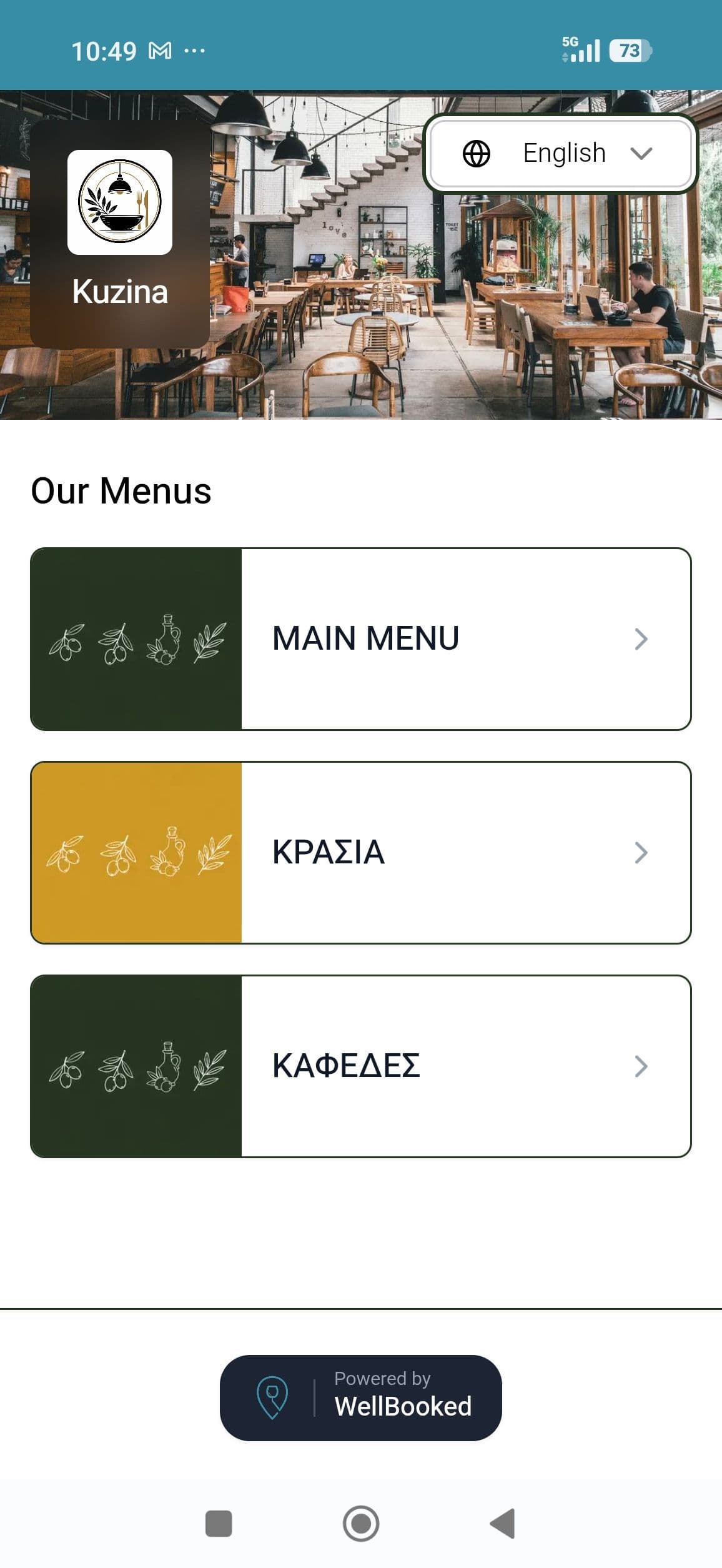
In short: A QR digital menu works well when it opens instantly on the phone without an app, is written in the guest's language, shows only what is available right now, and the QR code sits where guests look for it. Below you'll find what it should contain, where to place the code, how to keep it current and which mistakes to avoid.
What a QR digital menu is
It's your menu as a web page. The guest scans the QR code with the phone camera and the menu opens in the browser, with nothing to download. It doesn't have to replace your printed menu; it often works alongside it, for guests who prefer to read on their phone or in their own language.
PDF, digital menu or ordering at the table?
Before you choose a solution, be clear about what you need:
- PDF menu. The quickest option, but hard to read on a phone (zooming, small text), and every price change means a new file.
- Digital menu. The content adapts to the phone screen, is organised in categories and you change it in seconds. Guests browse, choose and order as usual, through your staff.
- Ordering and paying at the table. Guests order on their own phone. It changes your service flow and usually needs a connection to your till.
For most restaurants and cafés that want to keep personal contact with guests, a good digital menu is the sensible first step.
What a good digital menu contains
- Logical categories, in the order guests think: for example coffees, drinks, breakfast, snacks, desserts.
- Short, accurate descriptions. What the dish contains and how it's served, in one or two sentences.
- Prices that match the printed menu and the receipt.
- Photos only where they help: your signature dishes and anything guests find hard to imagine. One good photo is worth more than ten average ones.
- Allergen information, or a clear note on where guests can ask.
Menus in several languages: why it matters
A tourist who can't read Greek will choose what they understand, or ask staff to explain every dish while the room is full. A menu in the guest's language makes choosing easier and frees up staff time.
Three tips:
- Check the translations of dish names. Some names (e.g. "kontosouvli", "fava") work better as they are, with a short explanation.
- Keep prices identical in every language. Different prices per language create distrust.
- Give every item a number. A guest who speaks neither Greek nor English can order simply by saying or pointing to the number, and your staff don't have to guess.
Where to place the QR code
The code should be where guests will look for it:
- On the table: on a stand, sticker or coaster, with a short line such as "Scan for the menu".
- Inside the printed menu: for guests who want the menu in their language.
- In the window or at the entrance: passers-by see the menu before coming in.
- On your Google Business Profile, Instagram and website: as a link, so the menu is visible before the visit.
Before printing, test the code with two different phones and make sure it is large enough and has good contrast.
How to keep it up to date
A digital menu is only worth it if it reflects reality:
- Change prices immediately when they change, not at the next print run.
- Hide sold-out items, so guests don't ask for something you don't have.
- Use separate menus when you need them: breakfast, lunch, daily specials, wine list.
- Make sure the QR stays the same when the content changes. That way you never reprint anything.
5 common mistakes
- A PDF that can't be read on a phone. If guests need to zoom, they give up.
- A QR code that leads to the wrong or a "dead" page. It happens when the link changes after printing.
- Different prices between the digital menu, the printed menu and the receipt.
- Unchecked translations that make a good dish sound strange.
- A QR code in a spot nobody sees, for example under the salt and pepper or behind a glass.
How it works with WellBooked
In the Standard plan of WellBooked Manager:
- You create the digital menu with categories, descriptions, photos and prices, and you can have more than one menu for the needs of the day.
- The menu appears in several languages: you choose from 50 available languages. In Standard your menu appears in Greek and 7 more languages, in Pro in Greek and 12 more languages. Guests switch language with one tap; translation is automatic and you can correct it.
- Every item has its own number, so guests can order by number, whatever language they speak.
- You add the allergen information you want guests to see. If you don't, an automatic message refers them to your staff.
- You change prices and hide sold-out items in just a few clicks.
- You create QR codes with your branding, download them for printing, and they stay the same when you update the menu.
- The menu is embedded in your website and can be added to Link Hub, your single link for Instagram and Google.
Standard costs €19 per month + VAT (or €180 per year + VAT). On the monthly subscription, the first subscription month is free.
Frequently Asked Questions
- Do guests need to download an app?
- No. They scan the QR code with the phone camera and the menu opens in the browser.
- Do I have to get rid of my printed menu?
- No. The digital menu can work alongside the printed one. Many venues put the QR code inside the printed menu, for guests who want to read it in their own language.
- If I change prices, do I need to reprint the QR code?
- No, as long as the code leads to a digital menu you update yourself, not to a PDF file that changes each time.
- How many languages can the menu be shown in?
- With WellBooked you choose from 50 languages: in Standard the menu appears in Greek and 7 more languages, in Pro in Greek and 12 more. For most tourist areas, English, German, French and Italian are a good start.
- Can I have a different menu for breakfast and dinner?
- Yes. Set up separate menus and point guests to the right one.